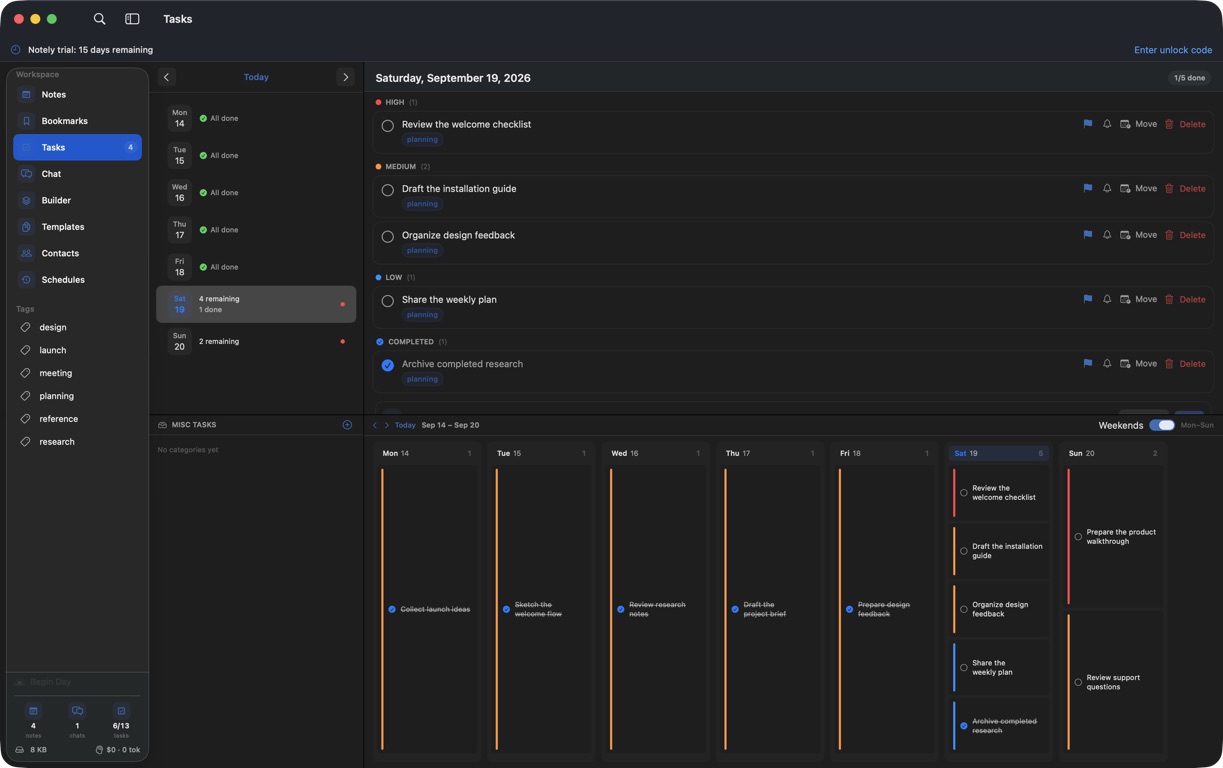
Daily tasks, priorities, undated lists, reminders, and weekly planning.
Plan the work
Open Tasks and choose a date. Add a task and set its priority.
Add task notes, tags, a related note, or a reminder when needed. Use undated lists and categories for work that is not ready for the calendar.
Use the weekly board to see the week. Drag a task card to another day to reschedule it; click a day header to open that daily list.
The daily list and weekly board let you plan by priority and move tasks between days.Actual Notely app · Generic demo data Full size
Keep the plan current
Mark completed tasks so daily progress stays accurate. Incomplete dated tasks roll forward when Notely runs its rollover check.
Show or hide weekend columns to fit your working week.
Use the global quick-task shortcut from any app and set the intended date before saving.
If tasks or reminders look wrong
Check the selected day, category, and completion state. A rolled-over task may now appear on a later day.
Keep Notely up to date and reopen it after a long break so missed-day rollover can run.
For reminders, check the reminder time, macOS notification permission for Notely, and Focus settings. Check your Mac’s time zone if dates look shifted.