
Enable useful notifications
- Allow notifications for Notely in macOS System Settings.
- Open Settings → Chat → General for replies finished while away and approvals needed.
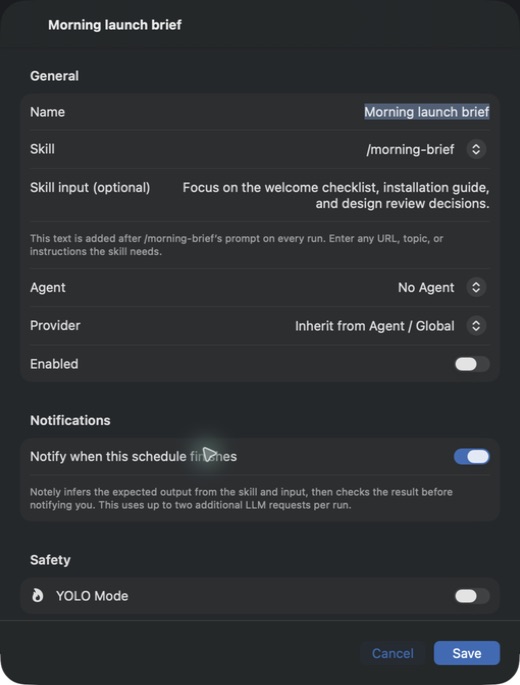
- For each schedule where you want alerts, open its editor and enable Notify when this schedule finishes. Schedule notifications default to off, are configured per schedule, and also apply to Run Now.
- For task reminders, set the reminder on the task and confirm the date and time.
Understand a schedule result
With schedule notifications enabled, Notely checks expected output against the actual result and available tool evidence. An alert reports Succeeded, Failed, or Couldn’t verify with a reason. Checking uses up to two additional AI requests per enabled run.
Bedrock and OpenRouter support result checks. CLI providers still execute schedules, but completed runs report Couldn’t verify. Execution errors report failure; cancelled or interrupted runs do not notify.
Respond to a notification
A schedule notification opens its exact saved run, including its explanation, checked expectations when available, output preview, and link to the full conversation. Later runs or schedule edits do not change that destination.
Reply and approval notifications return you to the relevant conversation. Review the pending action before approving it.
When nothing appears
- Check macOS Focus modes, notification style, and whether notifications are allowed on the current display or lock screen.
- Confirm Notify when this schedule finishes in that schedule’s editor. The editor links to macOS Notification Settings if permission is disabled.
- Results remain available under Schedules → Recent runs even when macOS notifications are disabled. A sleeping Mac or closed app can prevent a scheduled run.