All help guidesYour workspace
Write, edit, and connect your notes
Markdown, tabs, pins, attachments, quick capture, and note export.
Create and format a note
- Choose Notes and create a note, or press ⌘N. Give it a title you will recognize in search.
- Write in Markdown or use the formatting toolbar for headings, lists, emphasis, code blocks, and other formatting.
- Use ⌘F to find text in the current note. Changes save automatically.
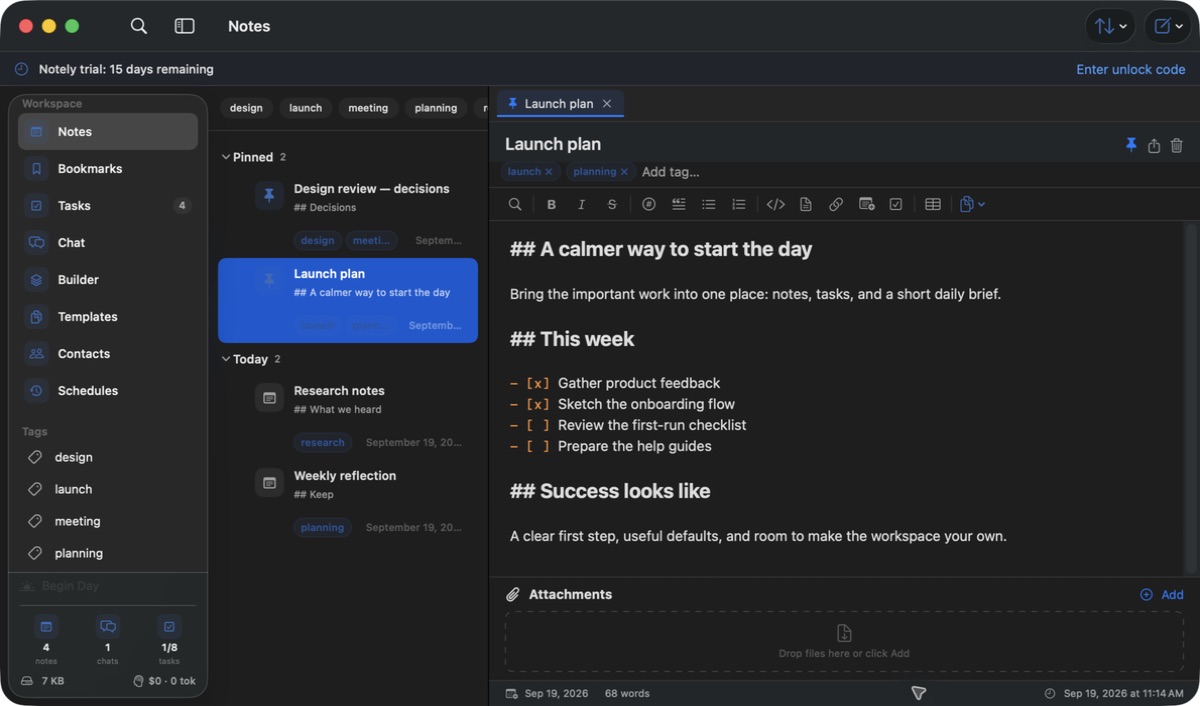
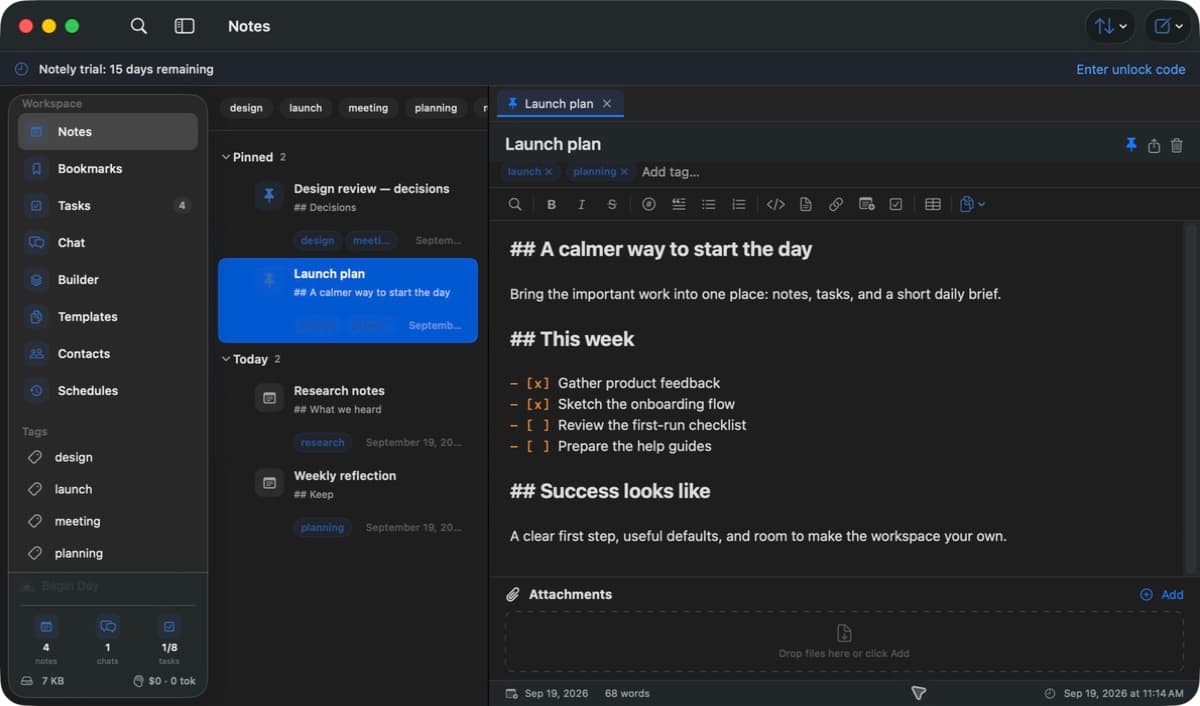 The Notes workspace keeps tags, open tabs, formatting, and attachments beside your writing.Actual Notely app · Generic demo data Full size
Keep work connected
- Pin frequently used notes, add tags, and keep multiple notes open in tabs.
- Use Link to note in the toolbar to connect related notes; Command-click a link to follow it.
- Attach relevant documents or images and use templates for repeated structures. Export the current note with ⇧⌘E when you need a copy outside Notely.
- Use the global quick-note shortcut to capture from another app. Double-click a note in the list to open it for quick editing in the floating panel.
If a note seems missing
- Check the selected tag, search query, and active workspace folder before creating a replacement.
- Open Settings → Storage to confirm the folder. If the folder was moved, select its new location.
- Check macOS Trash for a deleted file and your own workspace backups. Reinstalling the app is not a backup or recovery method.