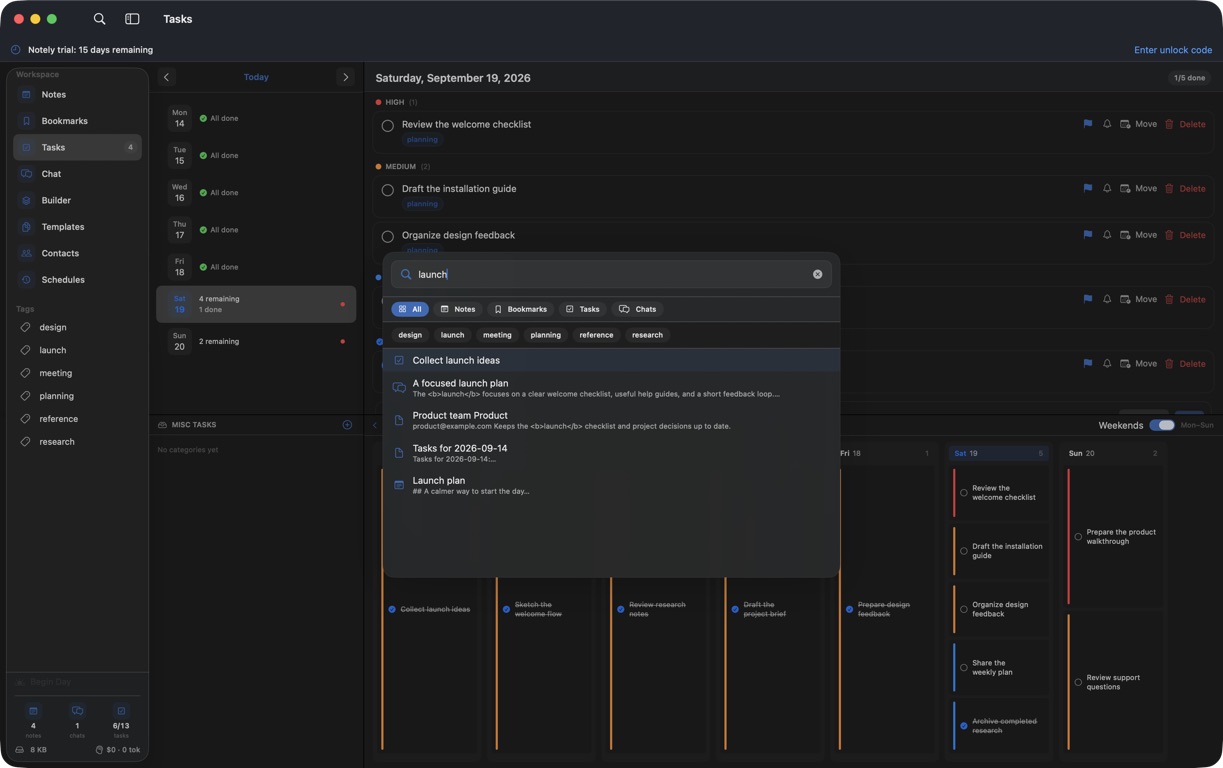
Search across the workspace, filter results, and manage groups of items.
Search from the keyboard
Press ⌘K to open the command palette.
Enter a distinctive word from the item. Narrow results with the available type or tag filters.
Select a result to open it, or use a quick action to create a note or bookmark.
Search across your workspace, narrow by content type or tag, and open a matching result.Actual Notely app · Generic demo data Full size
Build a useful tag system
Use a small set of tags for projects or themes. Tags connect related work across the workspace.
Select a tag in the sidebar to see related items. Right-click a tag and choose Highlight Tag to keep it prominent.
Command-click or Shift-click supported lists to select multiple items. Review the selection before bulk tagging, moving, or deleting.
Use the dedicated search in Notes, Chat, or Contacts when you already know the content type.
Improve missing results
Clear filters and try a shorter query. Confirm that you are in the workspace containing the item.
If AI cannot find imported material, inspect Settings → Chat → Knowledge Base and use its rebuild action. A rebuilt search collection cannot restore deleted source files.