
Create a scheduled run
- Save and test a custom skill in Builder. Skills marked Requires user input are supported.
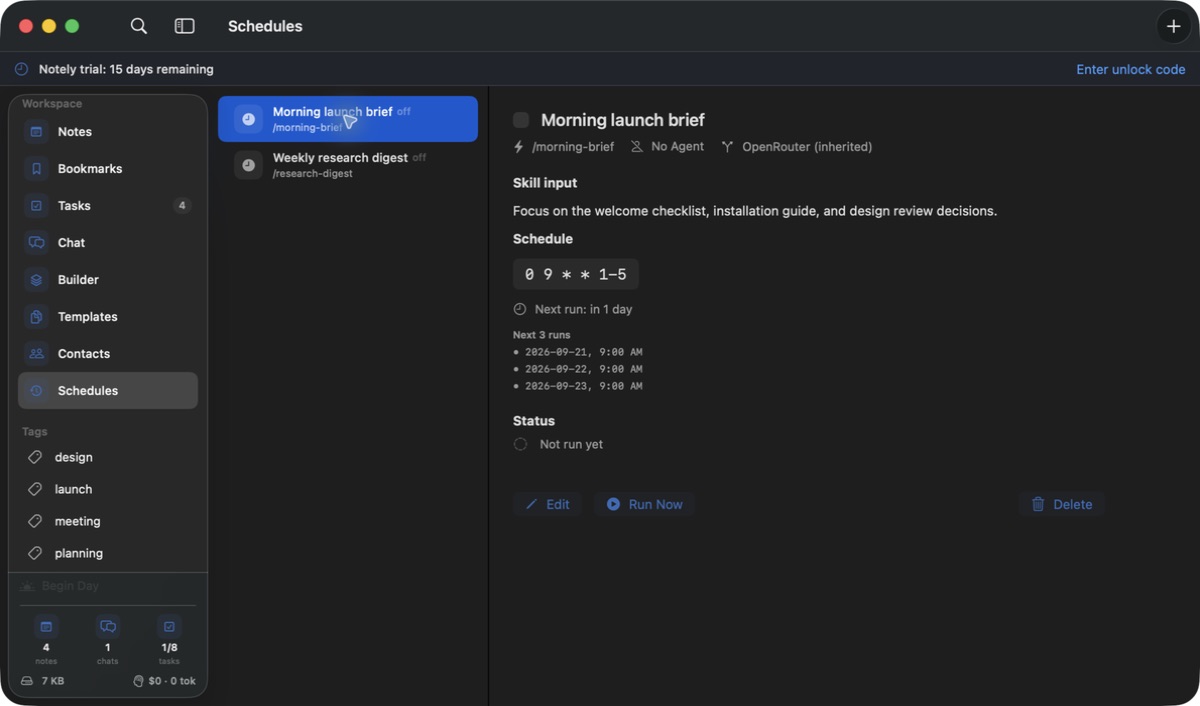
- Choose Schedule in Builder, or open Schedules and add a schedule. Choose the skill, an optional agent, and a provider or Inherit from Agent / Global.
- Fill in Skill input with a URL, topic, or instructions. This is required when the skill requires input and optional otherwise. Each run adds this saved input after the skill prompt; separate schedules can give the same skill different input.
- Choose a schedule preset or a custom recurring expression. Review the next run times, save, enable the schedule, and use Run Now to test its behavior.
Choose notifications and result checks
In the schedule editor, enable Notify when this schedule finishes if you want alerts. Notifications default to off and are configured separately for each schedule. The choice also applies to Run Now.
With notifications enabled, Notely infers expected output from the saved skill and input, then compares the actual output and available tool evidence against those expectations. This uses up to two additional AI requests per enabled run. Results report Succeeded, Failed, or Couldn’t verify, with a short explanation.
Result checks currently support AWS Bedrock and OpenRouter. Claude CLI, Codex CLI, OpenCode CLI, and Kiro still run scheduled skills, but completed runs report Couldn’t verify. Execution errors count as failures; unavailable, incomplete, ambiguous, or timed-out checks remain unverified. Cancelled and interrupted runs do not send alerts.
Review the exact run
- Select a schedule and open an entry under Recent runs to see its saved result.
- Review Expected output and the assessment when checks were enabled, then read the explanation and Output preview. Choose Open full conversation for the complete chat.
- Clicking a schedule notification opens that exact run, even after a later run finishes or the schedule is edited. Results remain available in Schedules when macOS notifications are disabled.
How run history is kept
Notely saves each run’s skill, input, agent, provider, and start time so later edits do not change its context. History retains up to 50 completed runs per schedule and 500 overall, plus active runs. Full conversations follow normal chat storage and are not deleted by the history limit.
A schedule cannot start an overlapping run of itself. If the app stops during a run, its history is recovered as interrupted when Notely starts again.
What needs to be running
Schedules run while Notely is open on your Mac. They are not hosted jobs that continue independently after the app quits. Keep the Mac awake and connected when a run needs network access.
Each schedule has its own YOLO setting. It controls approval of risky commands and provider tool requests for that run; filesystem access grants are still required. Establish required folder access during a supervised test.
Investigate a missed or failed run
- Check Enabled, the selected skill, saved Skill input, and the next-run preview. Confirm the Mac’s date and time zone.
- Review Recent runs and the explanation, then test the same skill with the same input manually.
- Check provider authentication, tool connections, missing folder grants, and approvals waiting for attention. Approval notifications remain in Settings → Chat → General; schedule alerts are configured in each schedule’s editor.
- If notifications are missing, check Notify when this schedule finishes, macOS notification permissions, and Focus. Couldn’t verify means the checker could not establish the result; inspect the conversation before retrying work.