
Pick up where another chat left off
Notely generates a short summary after a conversation has at least two user messages, then refreshes it as the conversation grows. These background AI requests focus on topics, decisions, and action items and can add provider usage.
Chat can receive up to ten recent conversation summaries for continuity. Ask “Find our earlier discussion of the project checklist and continue from its decisions” when the details matter; the assistant can search and open saved conversations using its workspace tools.
The brain badge in the chat header counts stored conversation summaries. These summaries are separate from the entries you edit in Settings → Chat → Memory. A summary is a brief aid to recall and may omit or misinterpret a detail.
Save a fact or preference explicitly
- Right-click a chat message and choose Add to Memory.
- Give the entry a short, recognizable Key and edit its Value to contain only what should be remembered. For example, use “planning-format” with “Group my daily plan by priority and include a short next step.”
- Choose Save. Entries persist across conversations in the current workspace. Saving the same key replaces that entry’s value.
- You can also ask the assistant to remember, read, or forget an entry when its memory tools are enabled. Check the saved entry to confirm the requested change.
Review, add, edit, or delete entries
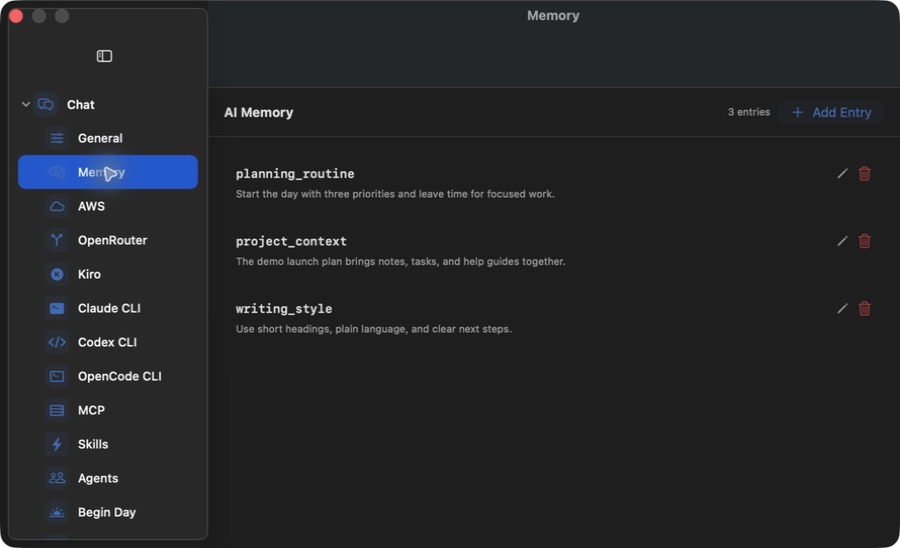
- Open Settings → Chat → Memory to see your AI Memory entries.
- Choose Add Entry to create a key and value directly, or use an entry’s pencil control to edit its value and Save.
- Use the trash control and confirm Delete to permanently remove a saved entry. Remove outdated or duplicate facts so later chats have clear context.
Keep control of remembered context
Memory is stored with your workspace, but memory or conversation summaries used in an AI request can be sent to your chosen provider. Keep passwords, access tokens, and other secrets out of memory.
Deleting a memory entry does not delete the original chat, automatic conversation summaries, context already present in an active chat, or a provider’s records. Starting a new conversation can still bring in recent conversation summaries; it is not an isolation mode.
If an old fact keeps appearing, review the memory entry and the original conversation or note. Tell the assistant which source is current. Use the separate context-compaction guide when a long conversation needs a shorter working history.
If memory is missing or inaccurate
- Confirm the active workspace and check the saved key and value in Memory settings.
- If the assistant cannot read or change memory, check the selected agent’s workspace tools and provider connection.
- A short chat or failed background summary request may not produce a conversation memory. Open the original chat to recover details and check provider errors or usage limits.