
Start with a useful request
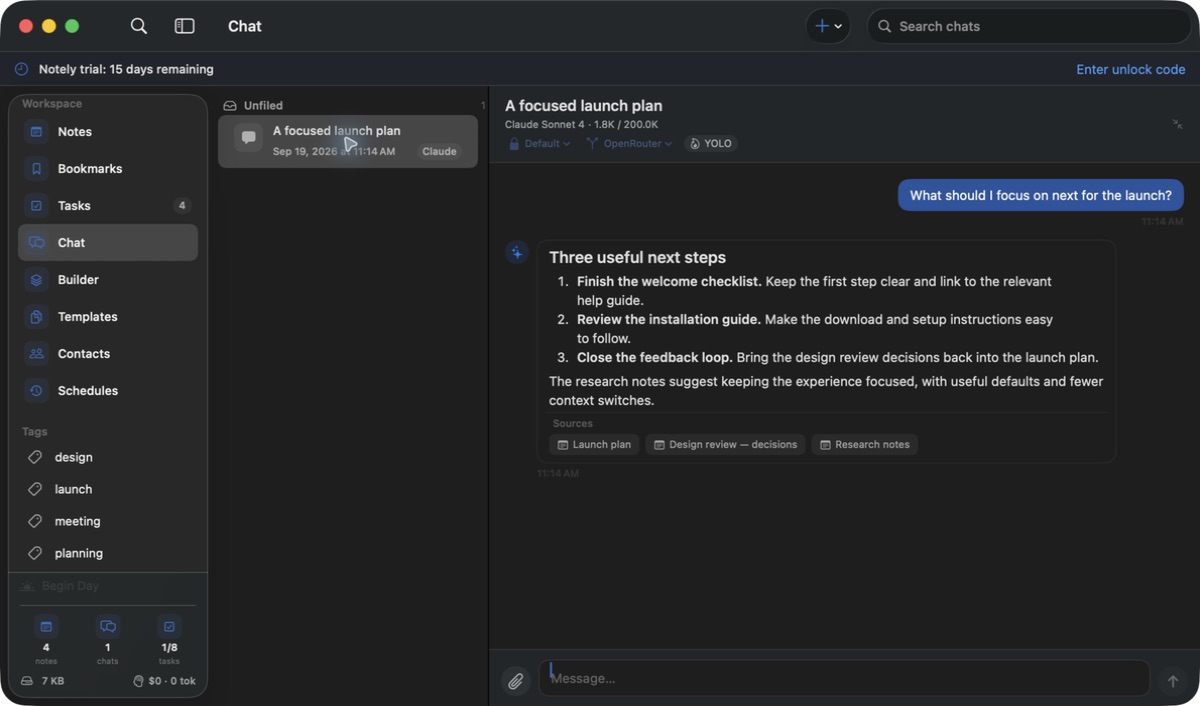
- Configure a supported provider in Settings → Chat, then open Chat or press ⇧⌘J.
- Choose the conversation’s provider and agent. Describe the outcome, relevant workspace material, and any limits.
- Attach files or ask Notely to find relevant notes, tasks, bookmarks, and past conversations.
- Review the response and click source chips to open referenced material.
Keep conversations organized
- Rename conversations from the header or context menu and organize them into folders.
- Run multiple conversations at once. You can queue another prompt while a response is running or use the stop control to interrupt.
- Use skills for repeatable prompts and chat memory for continuity across conversations. Right-click an individual message to export it as HTML.
Carry context between chats
Notely creates brief conversation summaries in the background and can include recent summaries in a new chat. Ask it to find an earlier conversation when you need the full details.
For a preference or fact you want to retain explicitly, right-click a message and choose Add to Memory. Review these entries in Settings → Chat → Memory. Conversation summaries, saved memory entries, and compacting a long chat are separate features.
If the assistant is stuck or incorrect
- Check the selected provider, connection test, model access, and tool permissions. A working provider does not automatically grant access to every tool.
- Ask for a narrower task and inspect the cited source. AI answers can be wrong, especially when a source is incomplete.
- If context is too large, start a focused conversation and attach only the material needed. Check output limits for responses that stop early.